FINDING THE CORRECT MULTI-PASS TO RESET
If the site has a Tibbo, it is possible to power cycle the Multi-Pass remotely.
If it is Multi-Pass 1 (also referred to as Lane 1), use the Advanced IP Scanner to find IP 192.168.0.40.
If it is Multi-Pass 2 (lane 2), find IP 192.168.0.41.
If it is Multi-Pass 3 (lane 3) find IP 192.168.0.42 etc...
⚠️ Note: If the site does NOT have a Tibbo, the customer will need to send someone out to the site to power cycle the Multi-Pass manually using the Main Power Toggle inside the unit.
If the site is using PAP (Pay at the Pump), the dispenser will need to be powered off through a breaker panel in their electrical room.
━━━━━━━━━━━━━━━━━━━━━━━━━━━━━━━━━━━━━━
RUNNING THE ADVANCED IP SCANNER
Log into the site using TeamViewer and run the Advanced IP Scanner located on the desktop.
Find the correct Tibbo IP
Refer to the IP Documentation to understand which component each IP is referring to.
━━━━━━━━━━━━━━━━━━━━━━━━━━━━━━━━━━━━━━
USING HERCULES
⚠️ ENSURE NO ONE IS FUELING BEFORE POWER CYCLING THE MULTI-PASS
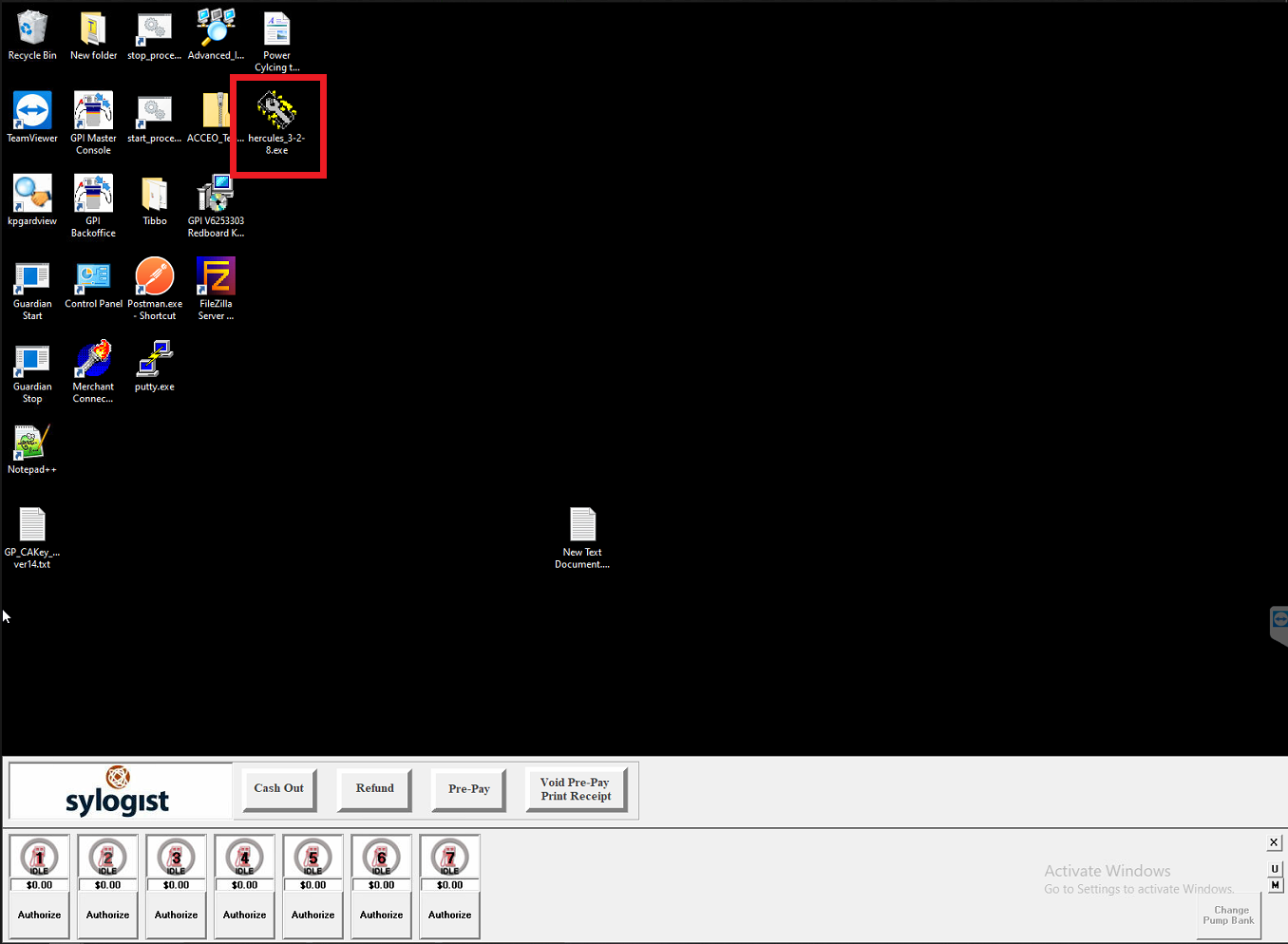
Open Hercules.
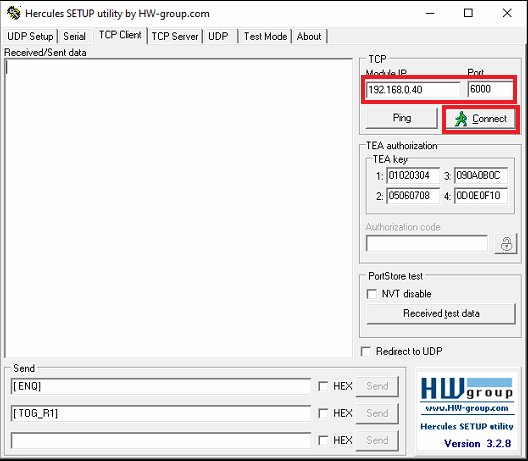
Select the TCP Client tab from the main menu.
Ensure the IP is set correctly (192.168.0.40 for Multi-Pass 1, 192.168.0.41 for Multi-Pass 2, etc...) and the Port 6000. Hit Connect.
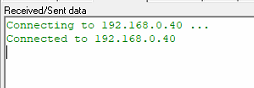
A successful connection will look like this:
Click on the Send button next to [ ENQ] at the bottom of the screen. After hitting send, you should see a message pop up saying [ ENQ] [ ACK].
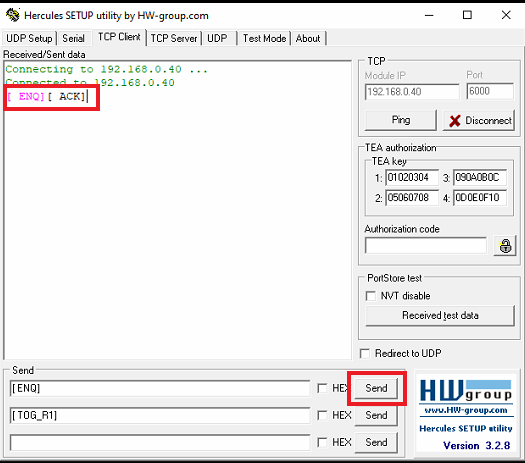
[ ACK] means the program received an "acknowledgement" from the Multi-Pass. If you receive a [ NACK], that means it was unable to receive data from the Multi-Pass. Please escalate to Tier 2 if you receive a [ NACK].
This next step will power cycle the Multi-Pass. Click on the Send button next to [ TOG_R1] at the bottom of the screen. After hitting send, you should see a message pop up saying [ TOG_R1] [ ACK].
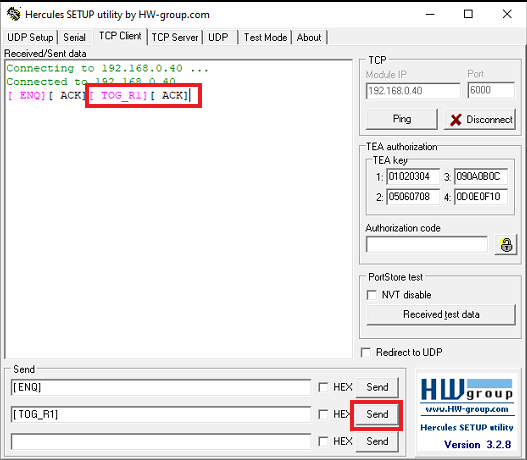
[ ACK] means the program received an "acknowledgement" from the Multi-Pass. At this point the Multi-Pass will power down, wait 5 seconds and then power back up again.
━━━━━━━━━━━━━━━━━━━━━━━━━━━━━━━━━━━━━━
USING THE WEB BROWSER
There are a select few sites that use the web browser to power cycle the Multi-Pass. To power cycle the Multi-Pass using the Web Browser, follow these steps;
⚠️ ENSURE NO ONE IS FUELING BEFORE POWER CYCLING THE MULTI-PASS
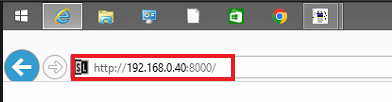
Open the web browser on the site PC and enter the Tibbo IP of the Multi-Pass you need to reset (e.g. http://192.168.0.40:8000 for Multi-Pass 1).
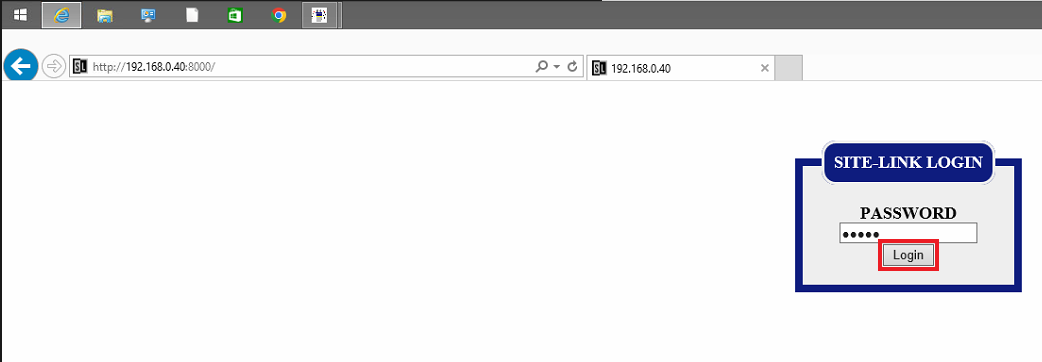
Click on Login.
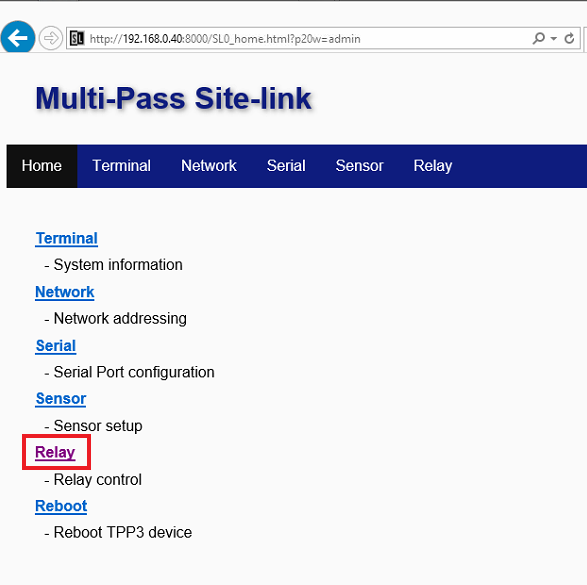
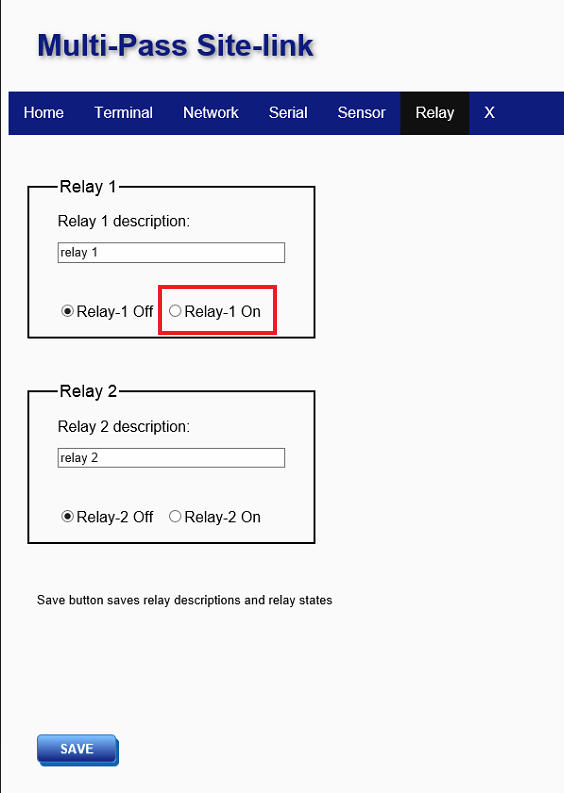
Select the Relay option in the Main Menu.
Turn Relay 1 ON, wait 5-10 seconds, and then turn Relay 1 back OFF.
Confirm with the customer that the Multi-Pass has been power cycled (if possible) and exit the web browser.
━━━━━━━━━━━━━━━━━━━━━━━━━━━━━━━━━━━━━━
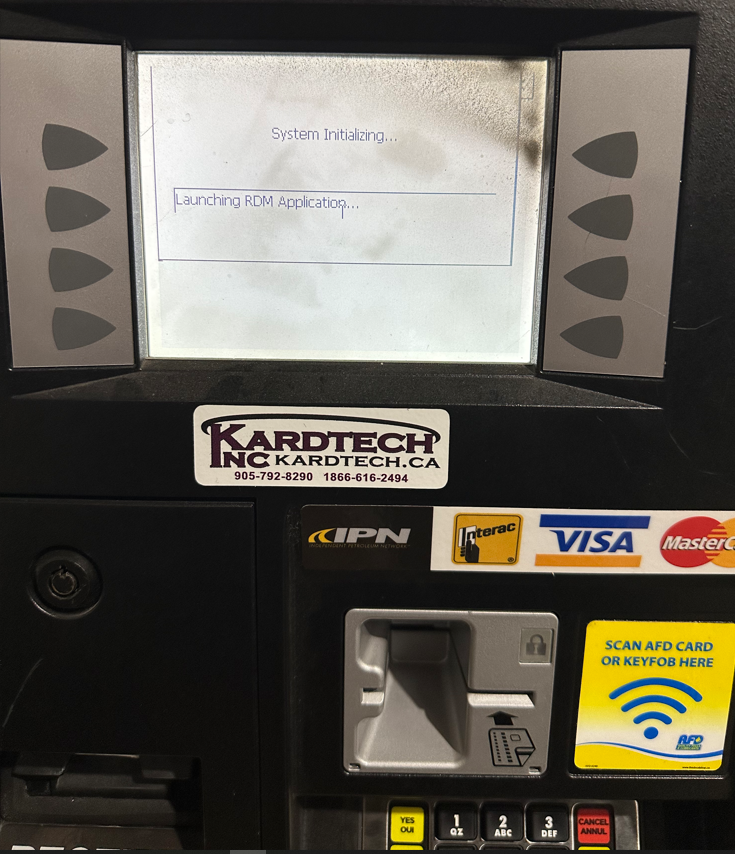
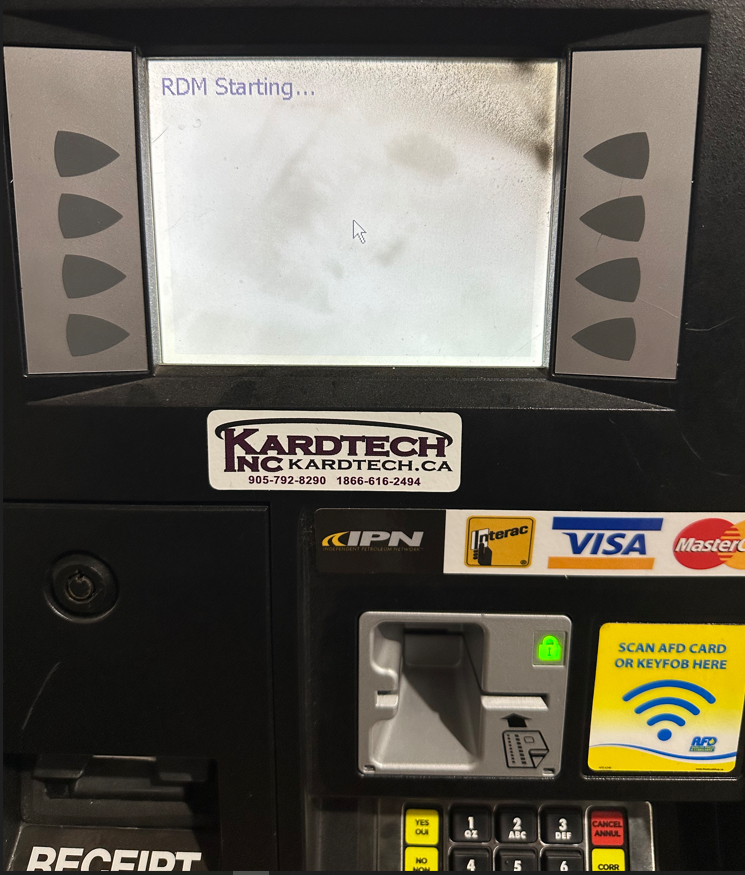
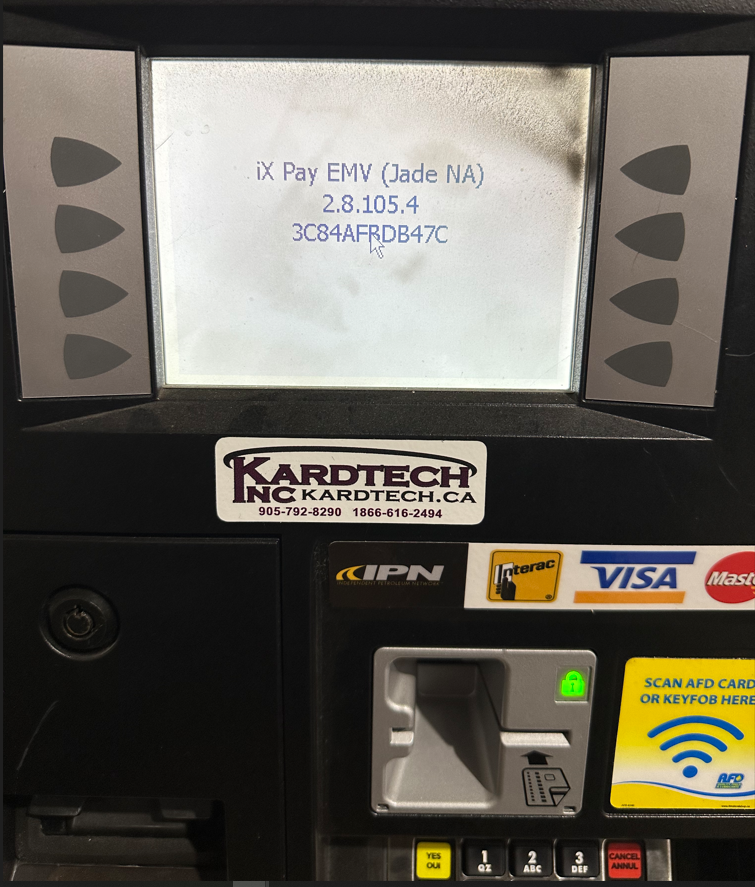
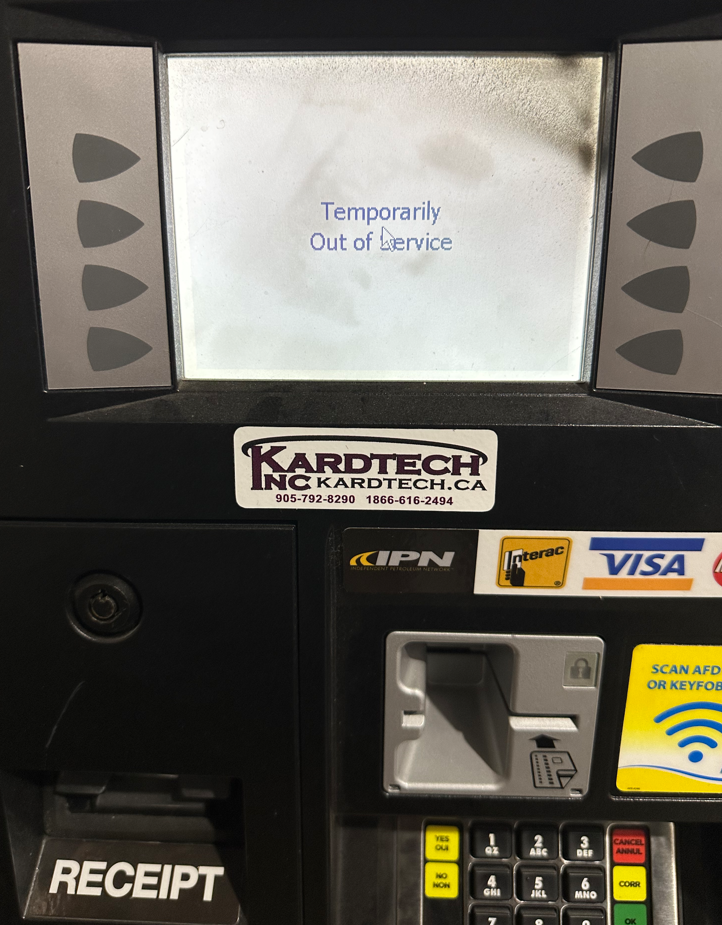
MULTI-PASS BOOTUP SCREENS
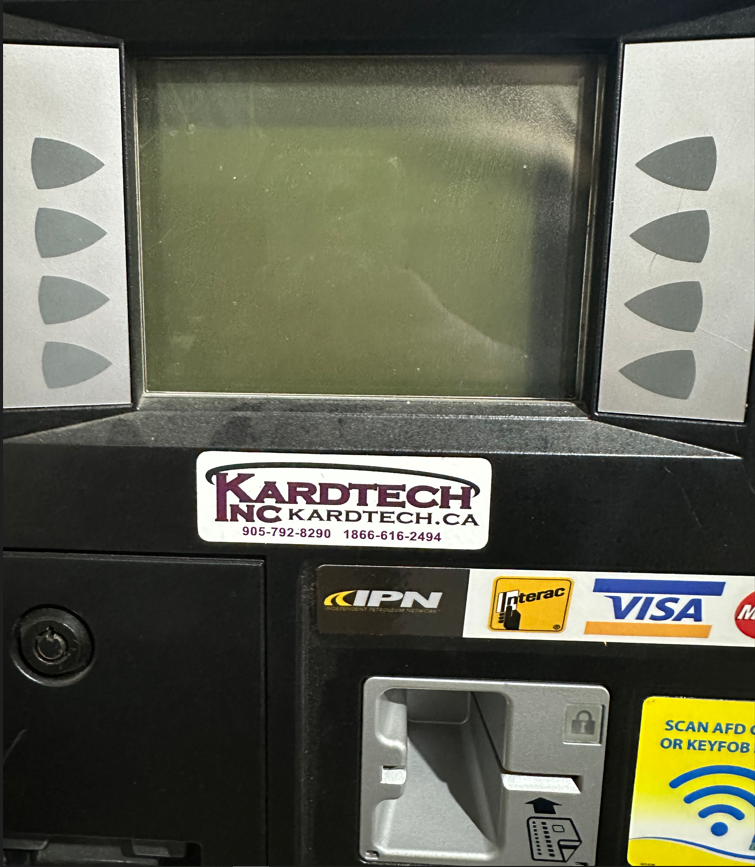
POWERED OFF
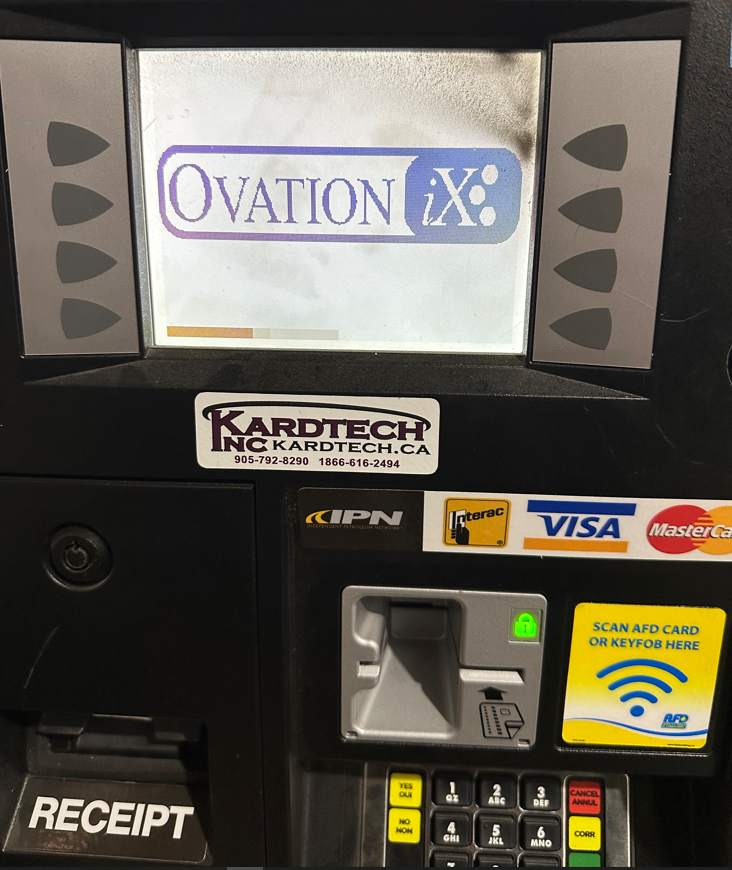
OVATION IX
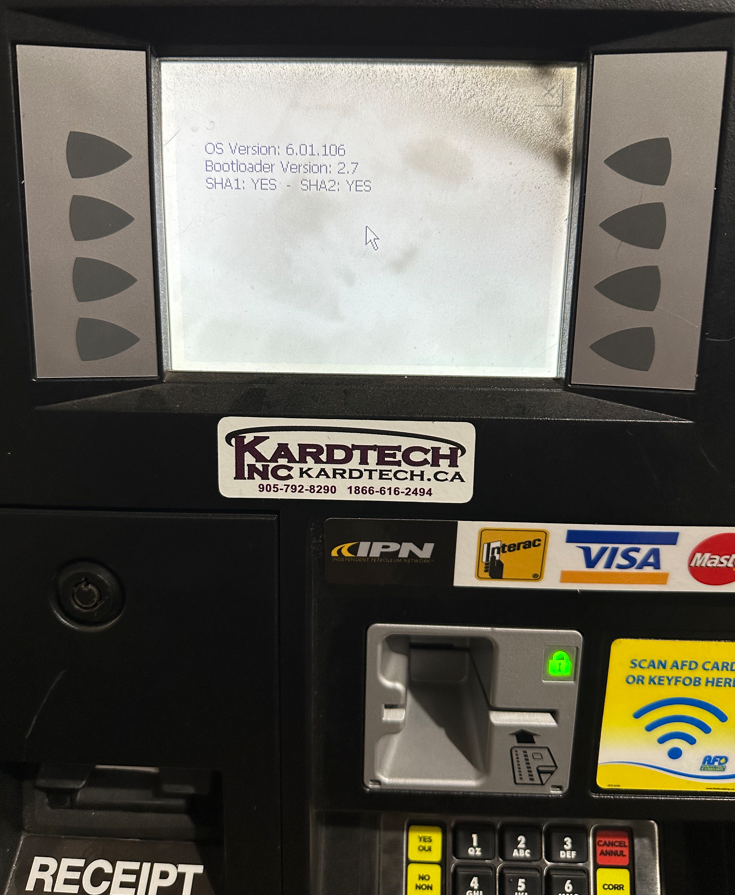
OS VERSION
SYSTEM INITIALIZING
RDM STARTING
IX PAY EMV
TEMPORARILY OUT OF SERVICE
PLEASE PAY INSIDE
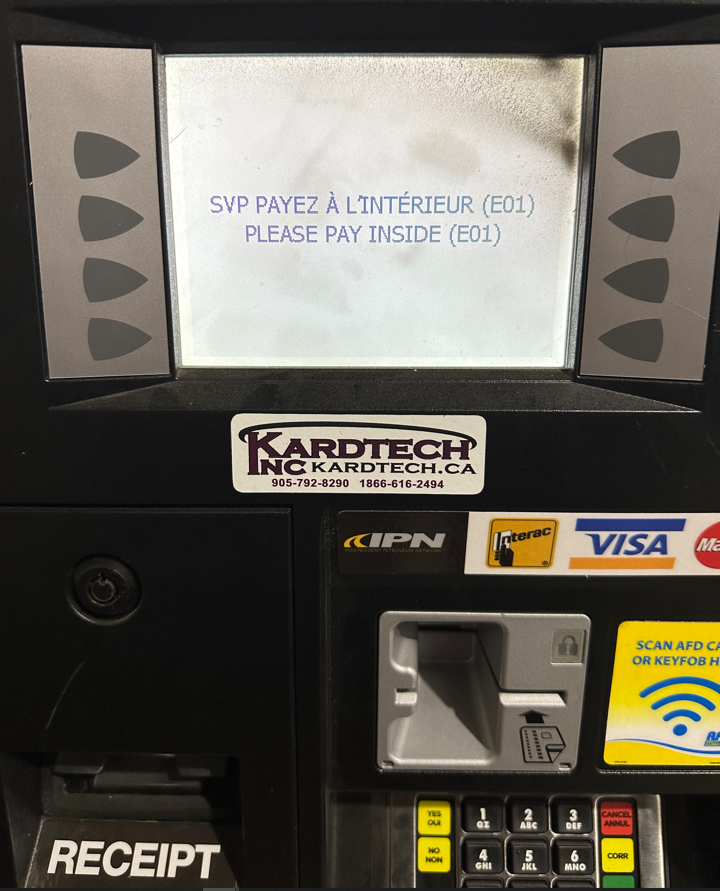
⚠️ ESCALATE TO TIER 2 IF THE SCREEN SAYS SPM BREACHED OR SPM UNAVAILABLE
⚠️ ESCALATE TO TIER 2 IF THE SCREEN IS IN A BOOT LOOP (GOES TO RDM STARTING THEN BACK TO OVATION IX REPEATEDLY)
Was this article helpful?
That’s Great!
Thank you for your feedback
Sorry! We couldn't be helpful
Thank you for your feedback
Feedback sent
We appreciate your effort and will try to fix the article