OVERVIEW
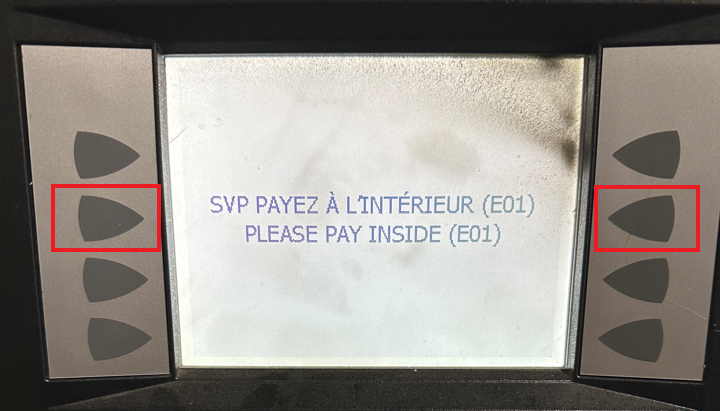
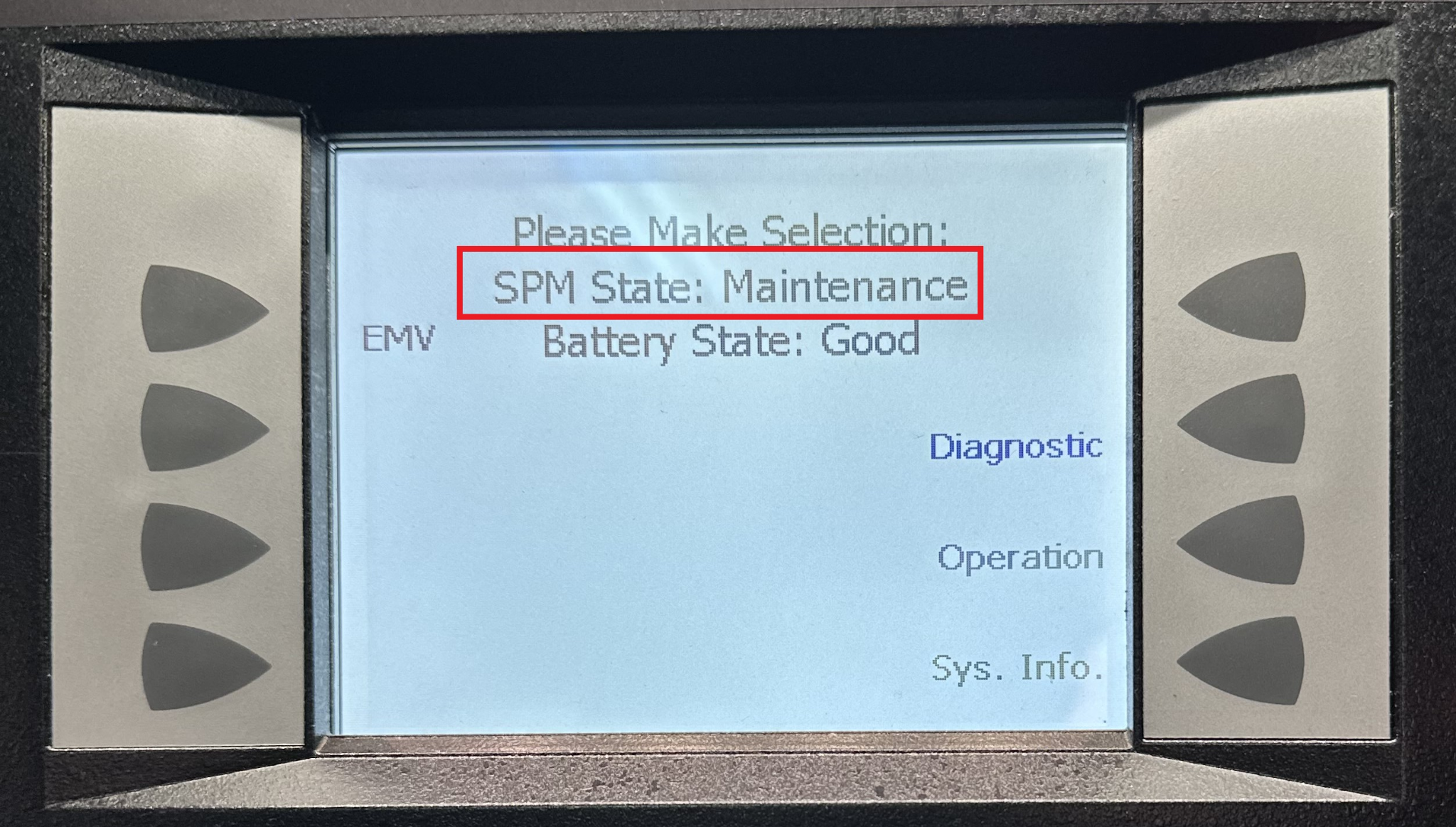
The Multi-Pass EMV Terminal can be placed into two modes: Maintenance Mode and Operation Mode. To determine the current state, a technician can simultaneously press the two soft keys located second from the top on each side of the screen. The SPM State will be displayed at the top of the screen.
━━━━━━━━━━━━━━━━━━━━━━━━━━━━━━━━━━━━━━━━━━
SPM STATES
Maintenance provides a safe environment for technicians to carry out tasks such as relocation, removal, or replacement of sensitive components in the Multi-Pass, without the worry of breaching the equipment. Some examples of these components include card readers and SPM's.If an SPM has been compromised and requires replacement, on-site technicians can activate Maintenance Mode on the unit. This allows them to undertake necessary actions securely, eliminating the potential risk of further breaches.
⚠️ Note: Technicians have the option to avoid putting the Multi-Pass in Maintenance Mode for parts replacement. Instead, they can simply power down the unit and proceed with their tasks.
Operation restores the unit to an operational state, enabling all components to function normally. In this mode, the components are safeguarded against tampering. Even the slightest disturbance to the components will result in breaching, necessitating their replacement.
Device Removal is an SPM state that arises when the card reader's security strip lacks sufficient padding, causing it to briefly separate from the padding due to pump vibrations. This momentary separation triggers the Multi-Pass to enter a Device Removal state, which essentially functions as an alternative version of Maintenance Mode. The issue here is that this can happen when no technician is around, meaning the Multi-Pass will be placed out of service until the correct security codes are entered.
━━━━━━━━━━━━━━━━━━━━━━━━━━━━━━━━━━━━━━━━━━
PLACING THE MULTI-PASS BACK INTO OPERATION MODE FROM DEVICE REMOVAL
When a Multi-Pass goes into a device removal state, customers will call support for assistance to get the Multi-Pass back into operation. This involves using the DFS Unlock app to input a Challenge Code and receive a Response Code.
1. Ask the site attendant to take a picture of the screen, or read out the SPM State to verify the issue.
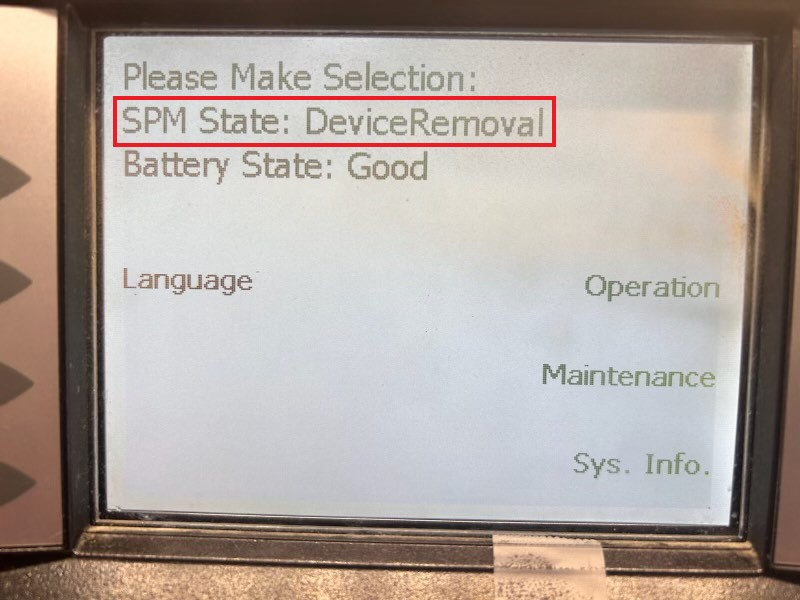
2. If the SPM State says Device Removal, have the site attendant select Operation on the screen.
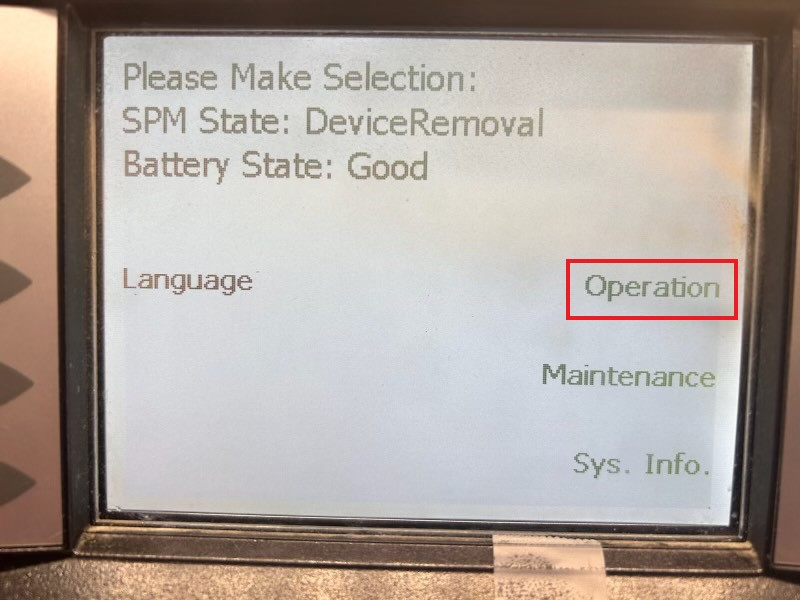
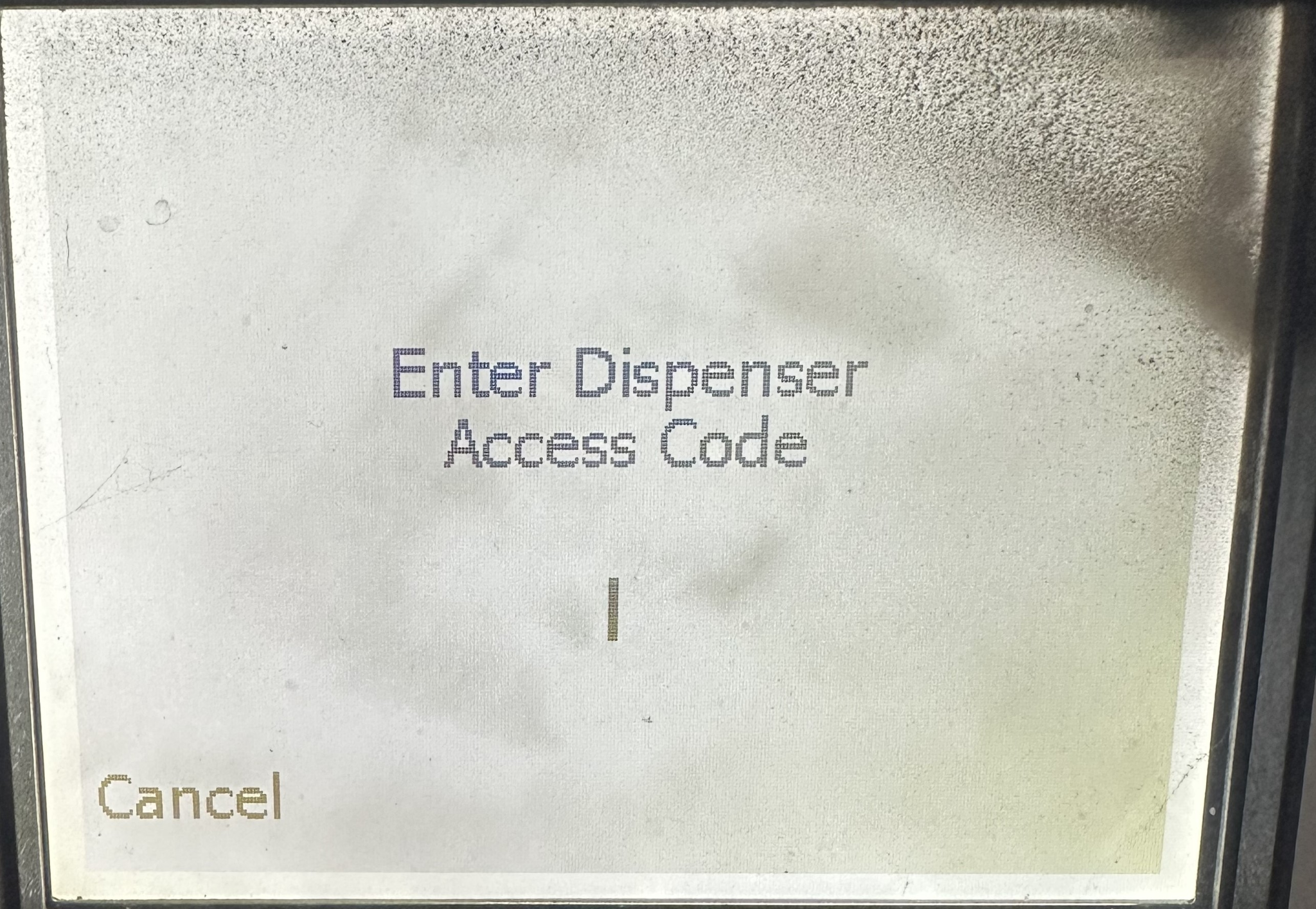
3. The system will now ask for a Dispenser Access Code. Input 8311 and hit Ok.
4. The next screen displays the Challenge Code. The Challenge Code must be typed into the DFS Unlock app by our support team. Best practice is to have the site attendant take a picture of the screen and send it to the support staff.
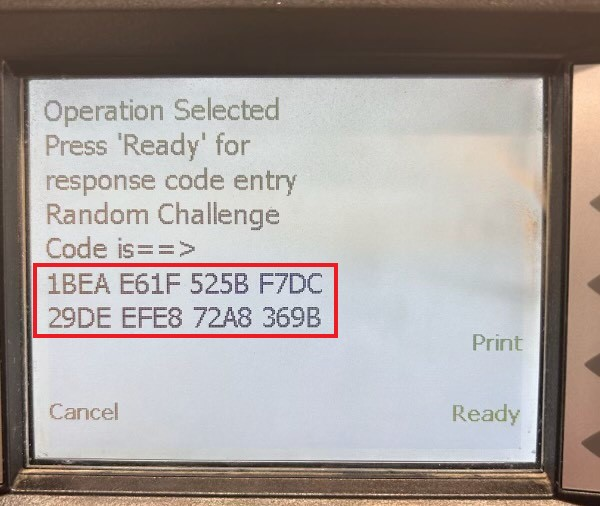
⚠️ Warning: The Challenge Code will only be active for 20 minutes before it expires. If it expires, the site attendant will have to hit Cancel and return to this menu again (repeat steps 2-4).
5. Open the DFS Unlock app on your mobile device.
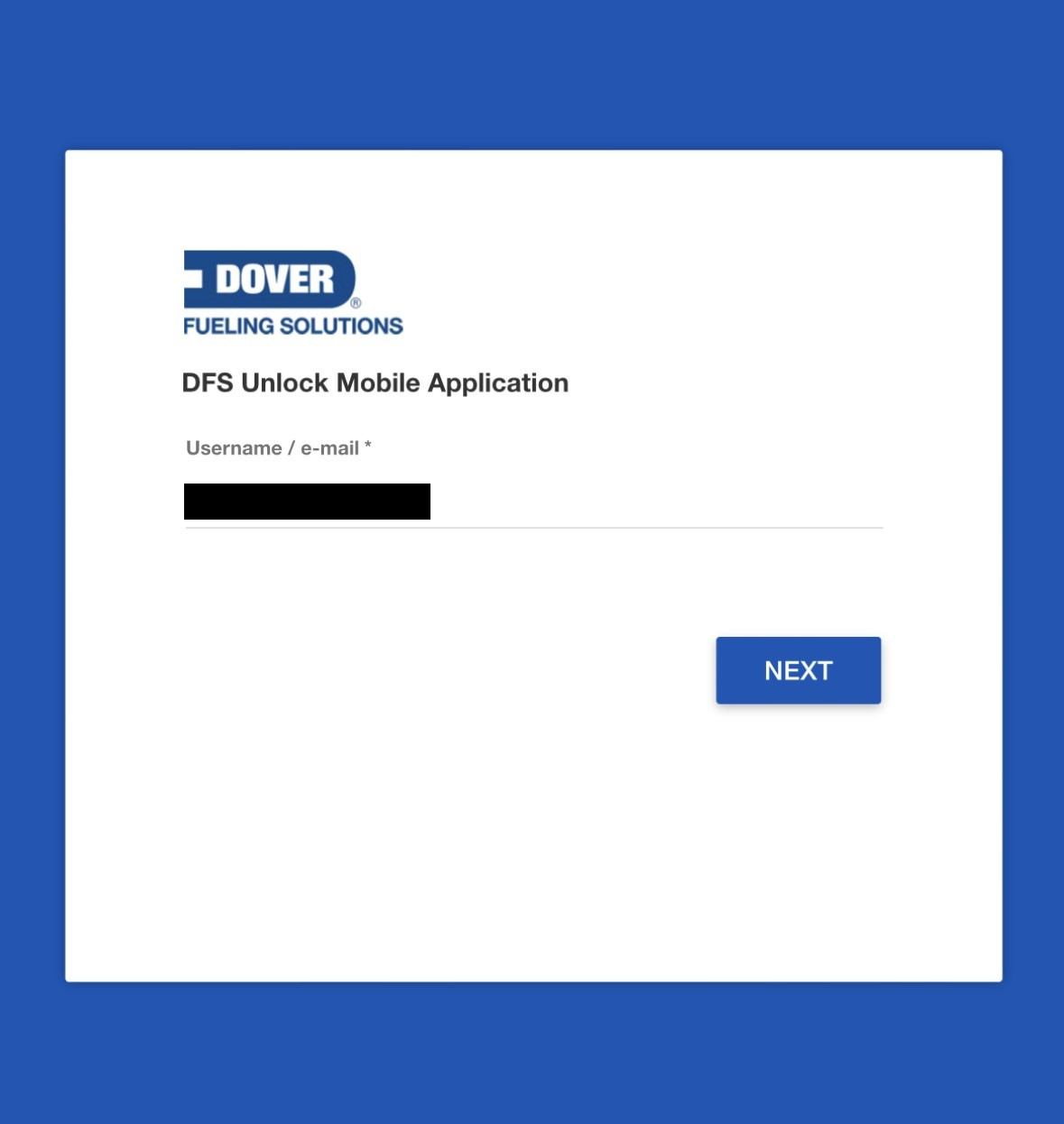
6. Enter your login credentials.
7. Under Request Code For, select iXPay/SPM/SCD.
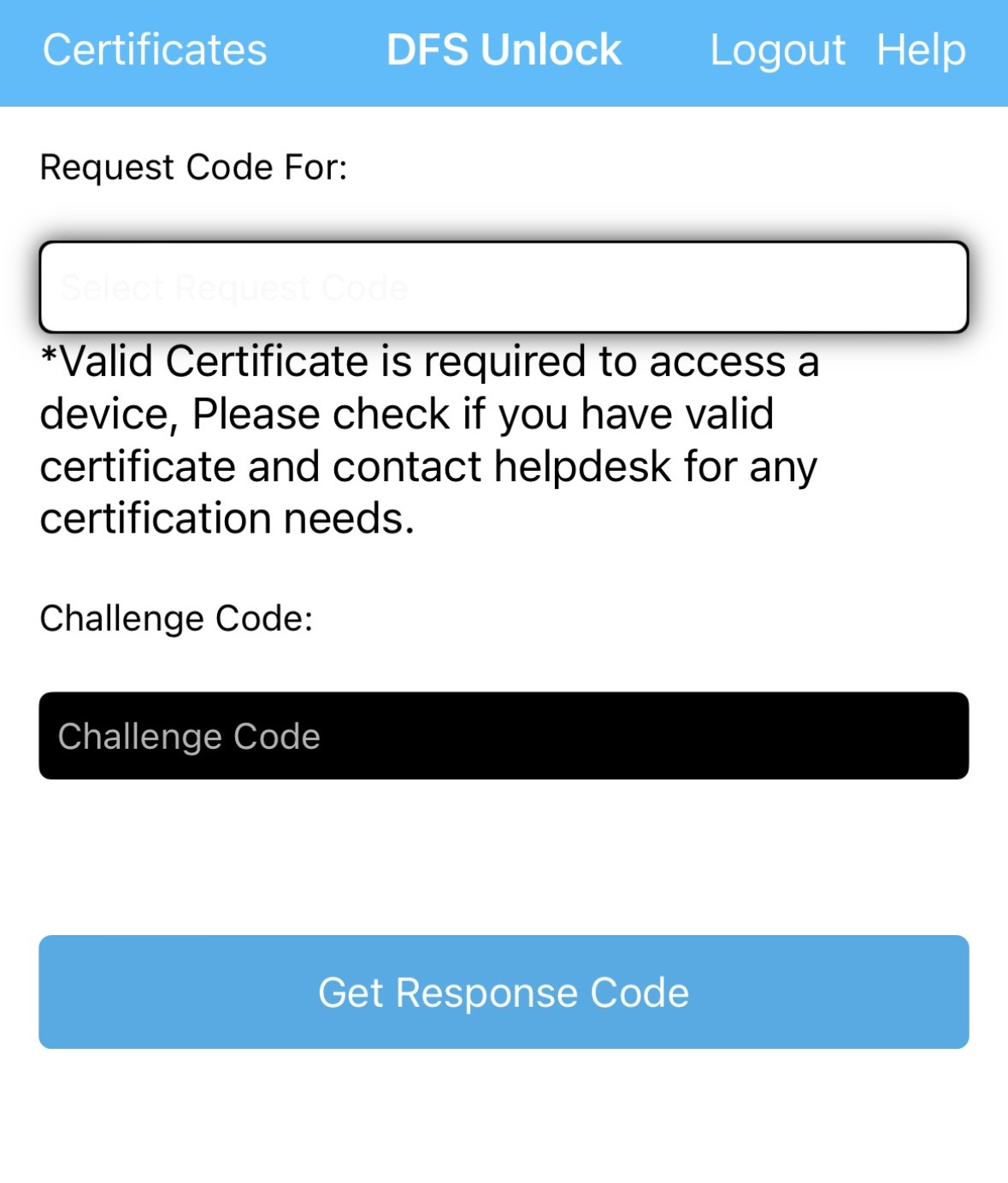
8. Enter the challenge code under the Challenge Code field.
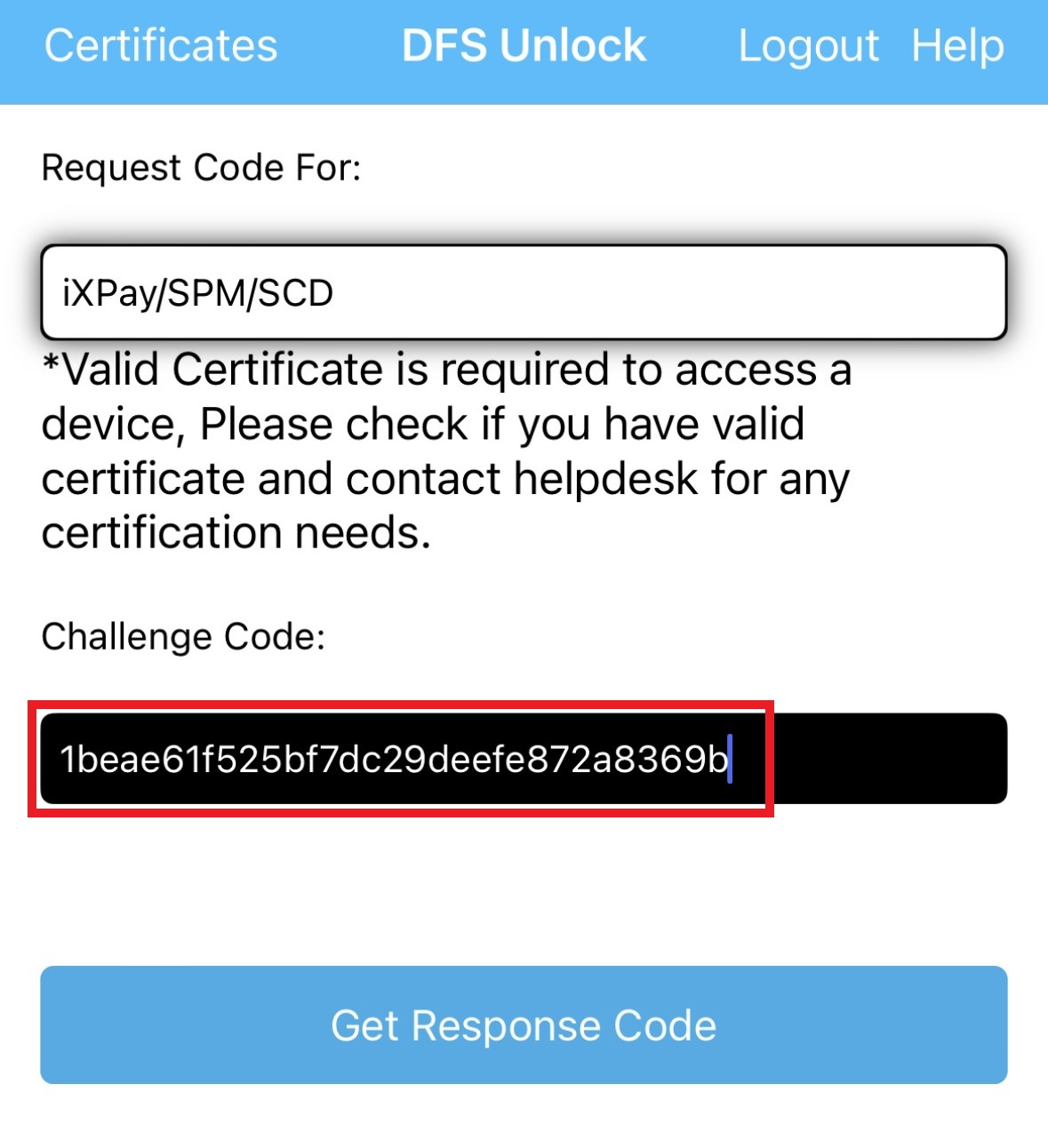
9. You should now see the Response Code below.
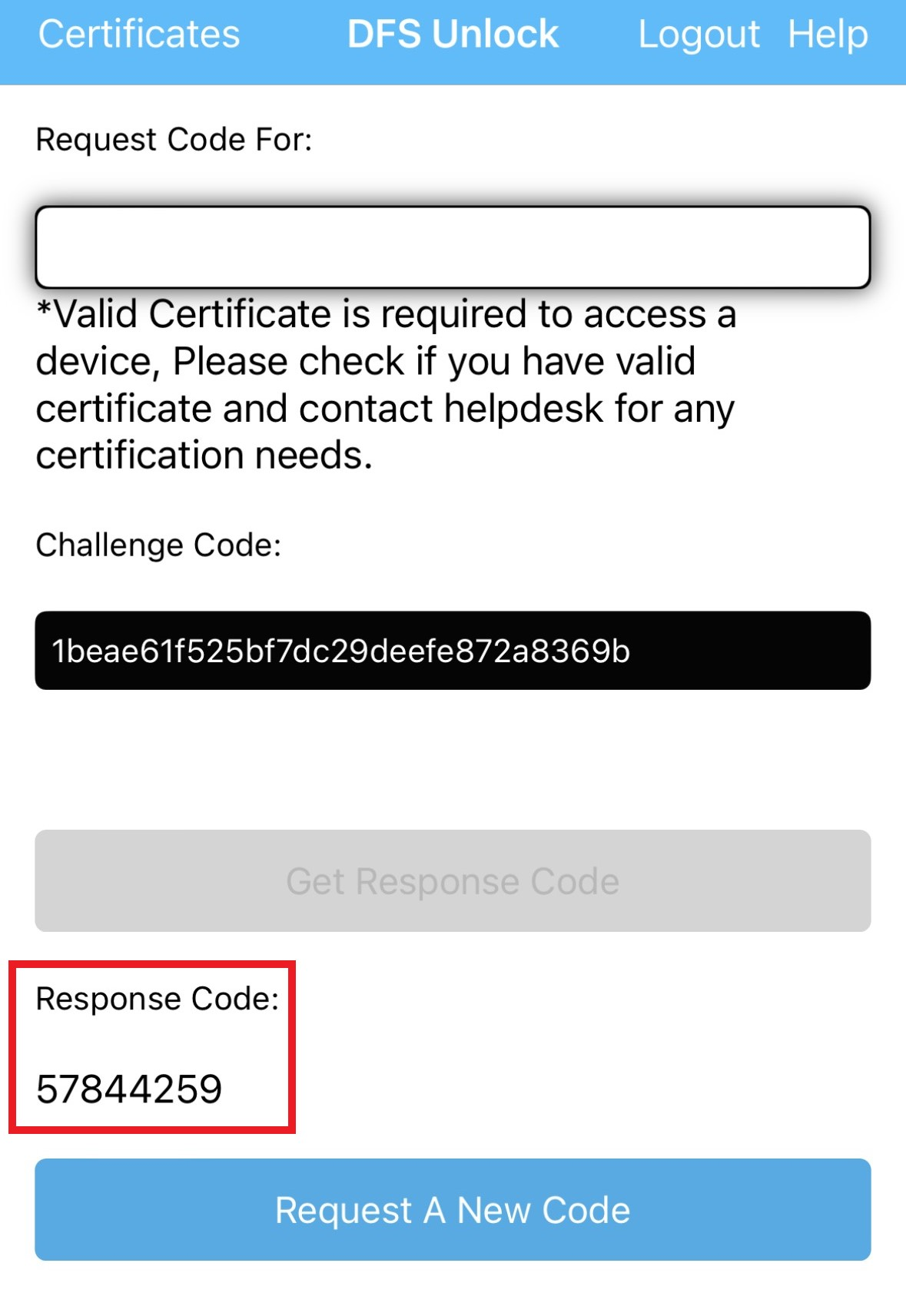
10. The site attendant will now have to hit Ready, and enter the Response Code on the following screen.
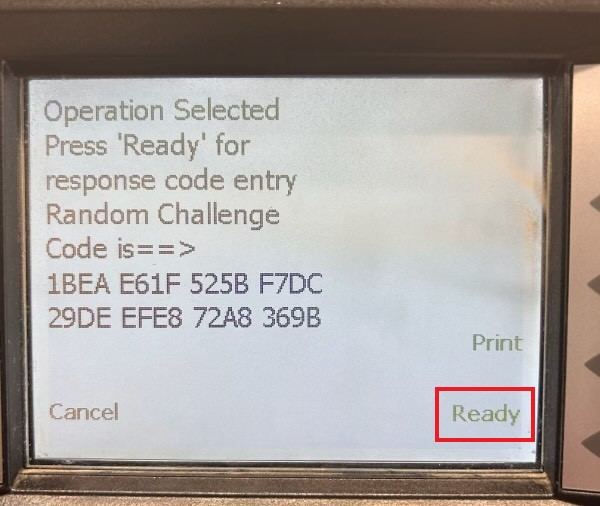
11. Once this is done, the screen should say Operation Mode Selected and the system will return you to the main diagnostic menu. Hit Cancel on the screen.
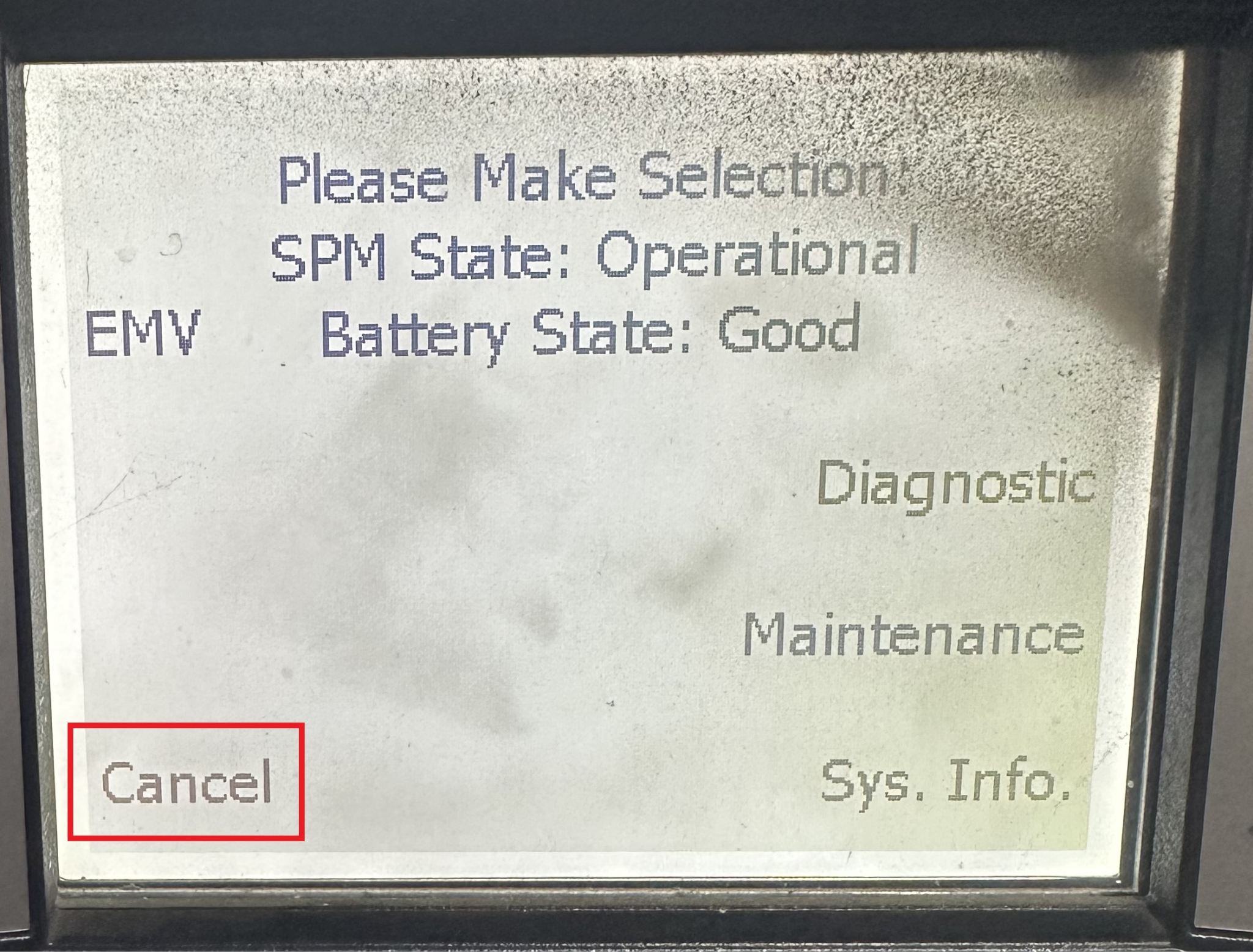
12. The screen should now go to Please Pay Inside. Reboot the console to bring the welcome screen back up.
Was this article helpful?
That’s Great!
Thank you for your feedback
Sorry! We couldn't be helpful
Thank you for your feedback
Feedback sent
We appreciate your effort and will try to fix the article