In the case where a Keypad (SPM) is breached, it will need to be replaced.
Generally, we would send the replacement SPM to the site and a technician would install it.
ACTIVATION
The SPM needs to be activated by global payments in order for it to accept bank cards.
Below is the information required to be given to global payments.
Affected Lane
Merchant ID (MID) and Terminal ID (TID)
Company Name, Address, Postal Code and Phone Number
OLD SPM Bank ID
NEW SPM Bank ID
__________________________________________________________________________________________________________
Merchant ID (MID) and Terminal ID (TID)
Global Payments has a Debit Terminal ID and a Credit Terminal ID.
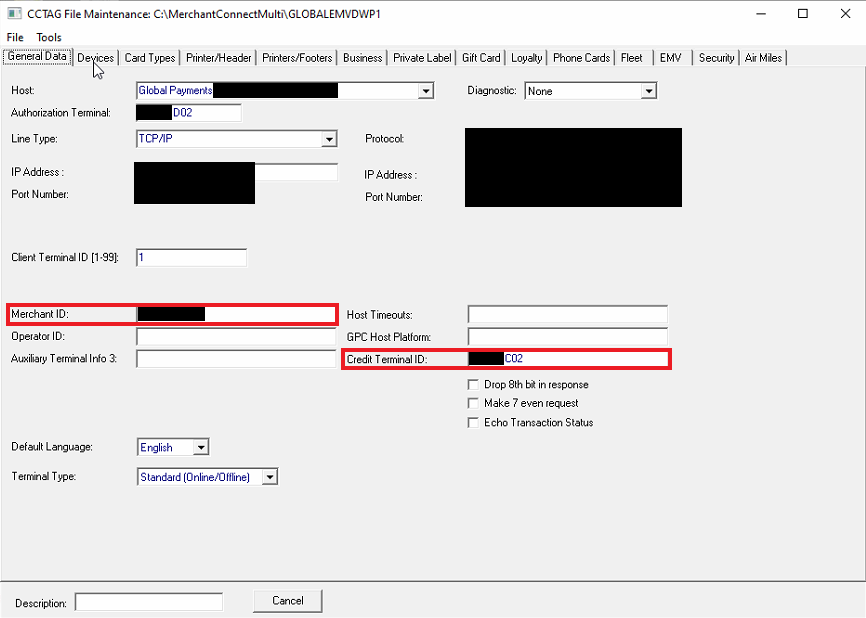
The Debit Terminal ID was initially found when first opening the Merchant Collect Multi application (Step 2). The Credit Terminal ID is located in step 4.
Steps:
Locate the Merchant Connect Multi application on the desktop.
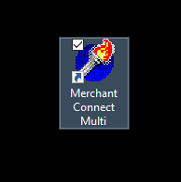
Alternatively, if you cannot locate this on the desktop, this can be found in C:\MerchantConnectMulti\Multi.exe
Open the application and highlight the correct reader. In this example, reader 2 is breached, so the second reader is highlighted. You can verify this is reader 2 by looking at the last three characters in the Terminal ID (D02).
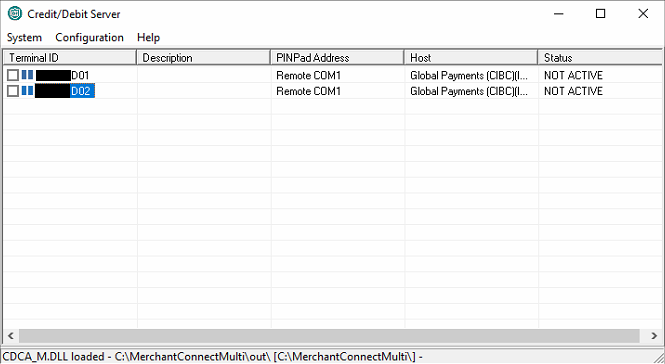
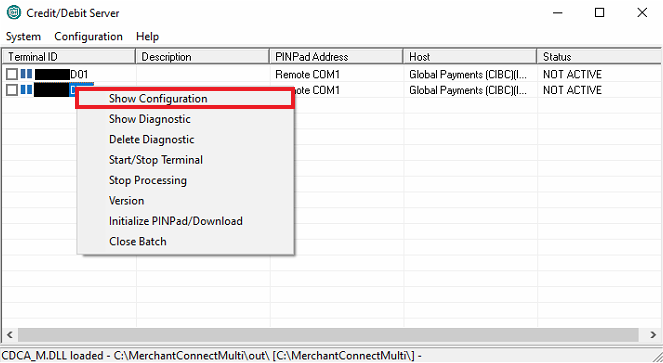
Right click on Reader 2 (D02) and select Show Configuration.
This menu will display the Merchant ID and Terminal ID.
__________________________________________________________________________________________________________
Company Name, Address, Postal Code and Phone Number
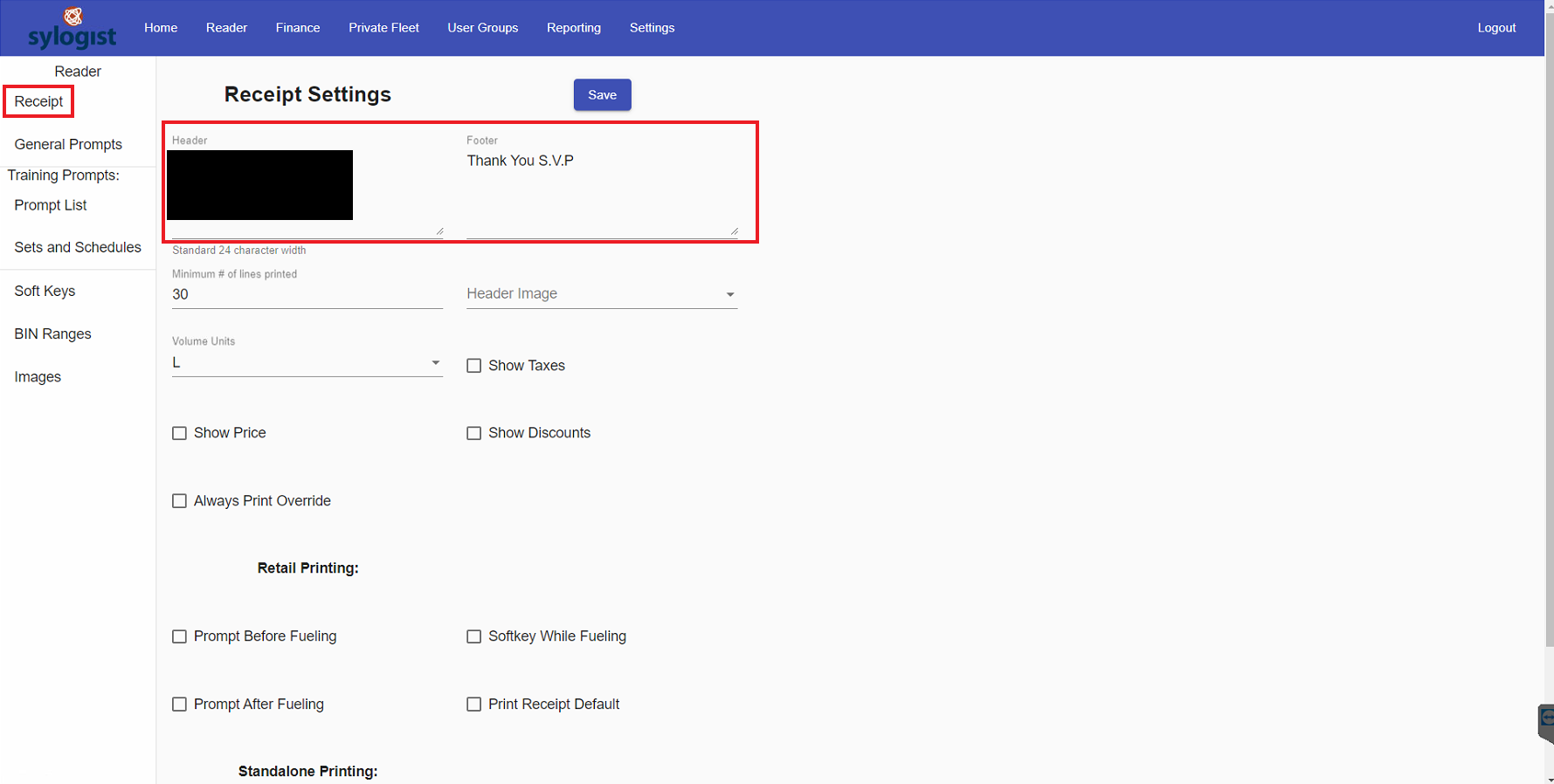
This information can be found in the Receipt Settings menu.
GPI
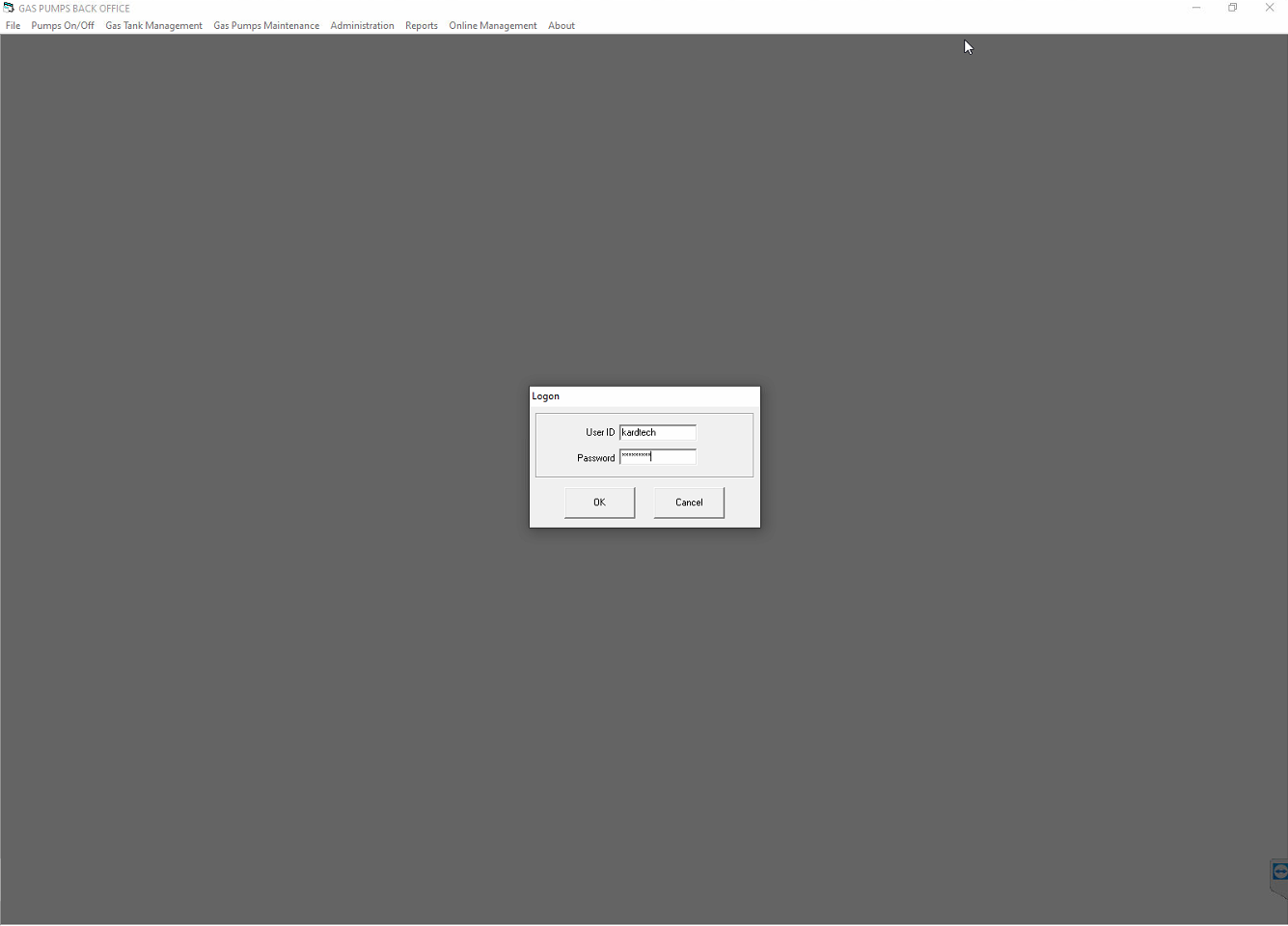
Open and Log in to the GPI Backoffice.
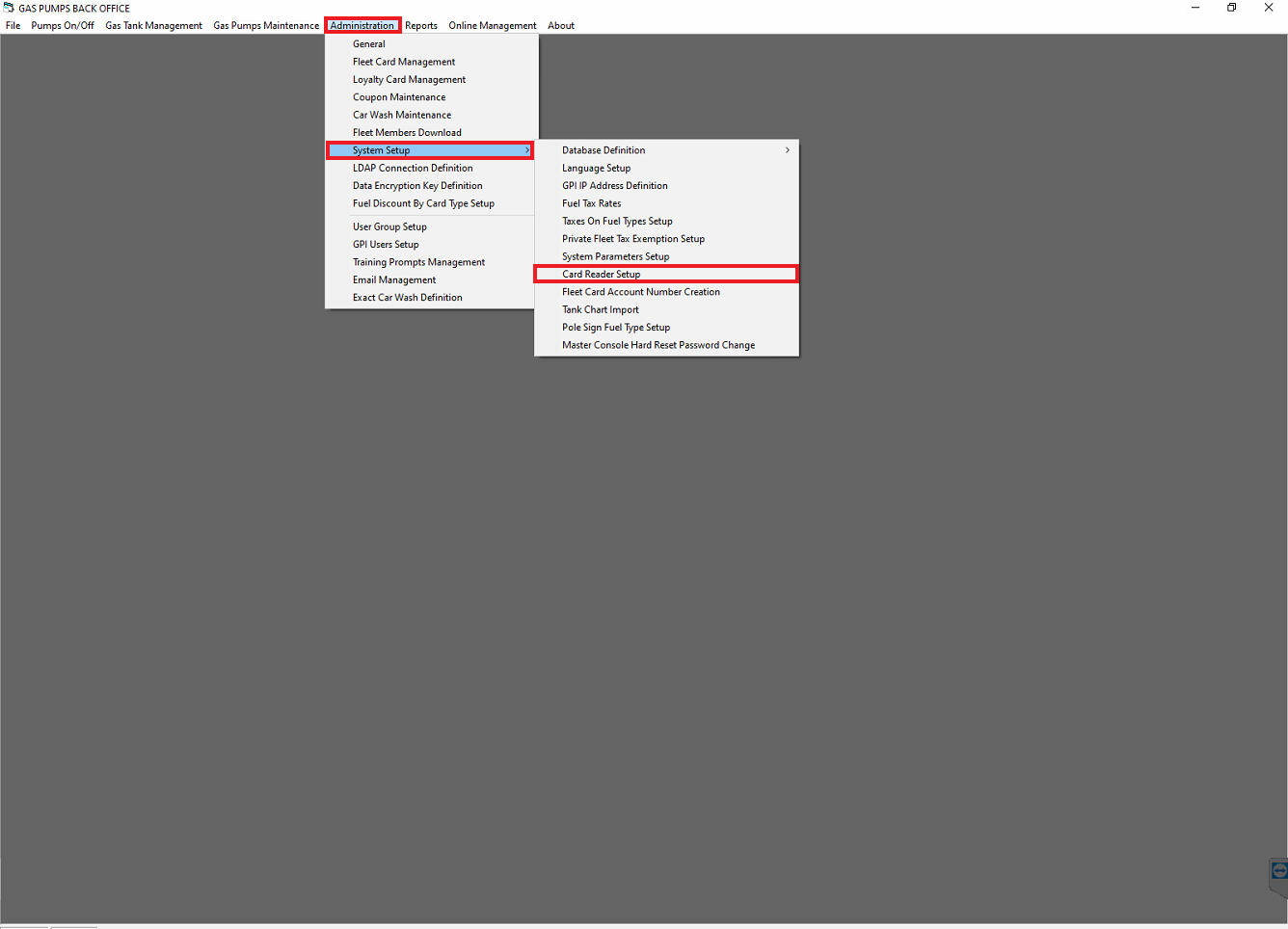
From the tabs above, select Administration > System Setup > Card Reader Setup.
Select Card Reader Receipt Setup from the menu. The Header Section and Footer Section shows what is being displayed on the receipts. The company name, address, postal code and phone number should all be here.
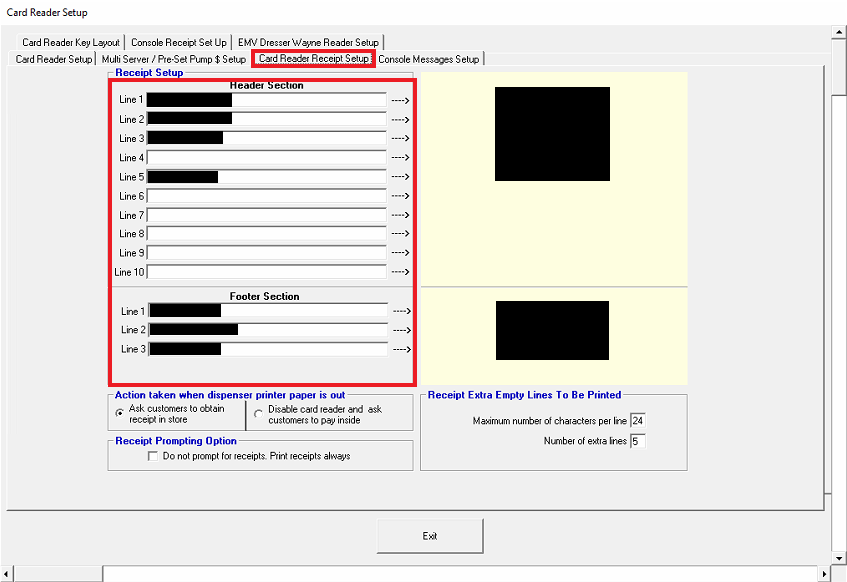 If for some reason something is missing from this menu (e.g. postal code), a simple google search should provide you the information you need.
FuelPay
Select the FuelPay Management application from the desktop.
Login using your credentials
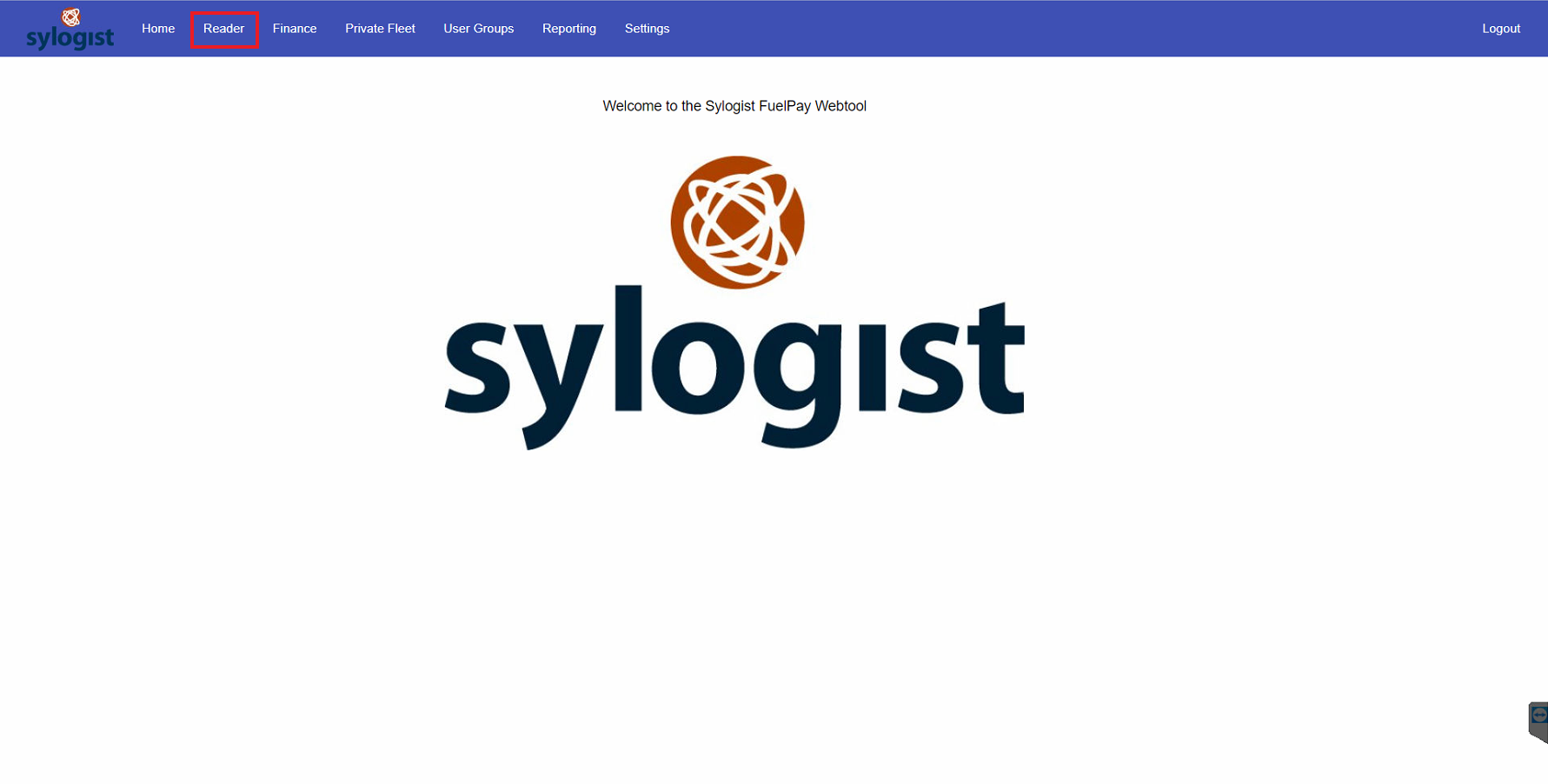
Select Reader from the main menu.
The Receipt menu should open by default. The Header Section and Footer Section shows what is being displayed on the receipts. The company name, address, postal code and phone number should all be here.
 If for some reason something is missing from this menu (e.g. postal code), a simple google search should provide you the information you need.
__________________________________________________________________________________________________________
OLD SPM Bank ID
Best practice is to call the site and ask them to provide you the currently breached SPM Bank ID. Most times, the person on site will need to open up the Multi-Pass Terminal or the dispenser to give you this information.
The Bank ID is printed on the back of the SPM
NEW SPM Bank ID
Generally, our office takes a picture of the NEW SPM Bank ID before sending it out. Contact Tier 2 support for this information. If our team did not take a picture, the Bank ID can be retrieved from the technician on site when the SPM arrives.
__________________________________________________________________________________________________________
INSTALLATION
After the SPM has been activated by global payments, and installed in the terminal by the on-site technician, the session and application keys need to be sent down to the system.
This is typically done by Rebooting the Console.
⚠️ Note: If Rebooting the Console is not possible due to high traffic at the site, an alternative method would be to Hard Reset the reader (FuelPay) or Clear the Application/Public keys and Reload Prompts (GPI).
Was this article helpful?
That’s Great!
Thank you for your feedback
Sorry! We couldn't be helpful
Thank you for your feedback
Feedback sent
We appreciate your effort and will try to fix the article